Field Technician Reporting App

Field Technician Reporting App — Saeid Kajkolah
Power Platform Dataverse Power Automate AI Builder

Field Technician
Reporting App

A technician opens the app, selects their work site and the equipment they’re inspecting, works through an automatically generated checklist, and submits. Power Automate picks up the submission, calls AI Builder to generate a plain-language summary, and emails it to the right manager — all without any manual steps.

7
Dataverse tables, full relational model
4
Canvas app screens end to end
0
Manual steps from submit to manager email
0
App changes needed to add new equipment types
Stack Power Apps Dataverse Power Fx Power Automate AI Builder Claude Code
▶ Try the live app
Section 1

The data model

Dataverse was chosen over SharePoint for three reasons: proper relational relationships between tables, column-level security so technicians only see data relevant to their assigned sites, and a clean API surface for the Power Automate flow.
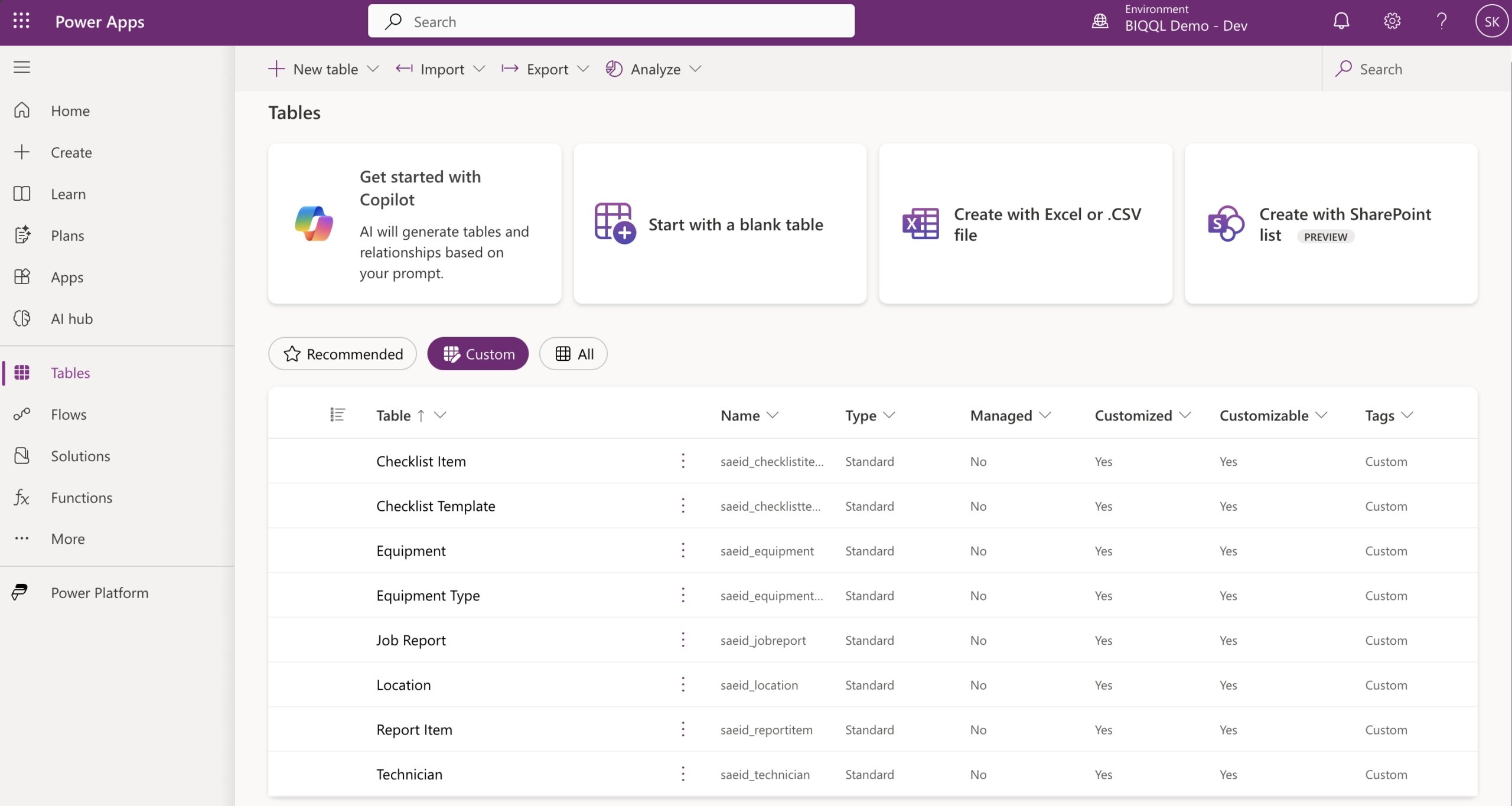
All 7 Dataverse tables in the FieldTechReporting solution
All 7 tables inside the FieldTechReporting solution

The dynamic checklist problem

Different equipment types need different inspection steps. An HVAC unit and a generator don’t share the same checklist. Hardcoding a checklist per equipment type doesn’t scale — add a new type and you’d need to update the app itself.

The solution is a lookup chain the app follows at runtime: Equipment selected → What type is it? → Which checklist template belongs to that type? → Load the checklist items for that template. Add a new equipment type and checklist in Dataverse and the app shows it automatically, with zero app changes.

This is the architecture worth explaining in an interview
  • Adding a new site: one Location record
  • Adding a new piece of equipment: one Equipment record with the correct type lookup
  • Adding a new equipment type with its own checklist: one EquipmentType, one ChecklistTemplate, and however many ChecklistItem records the checklist needs
  • App changes required in all three cases: zero

The 7 tables
Location
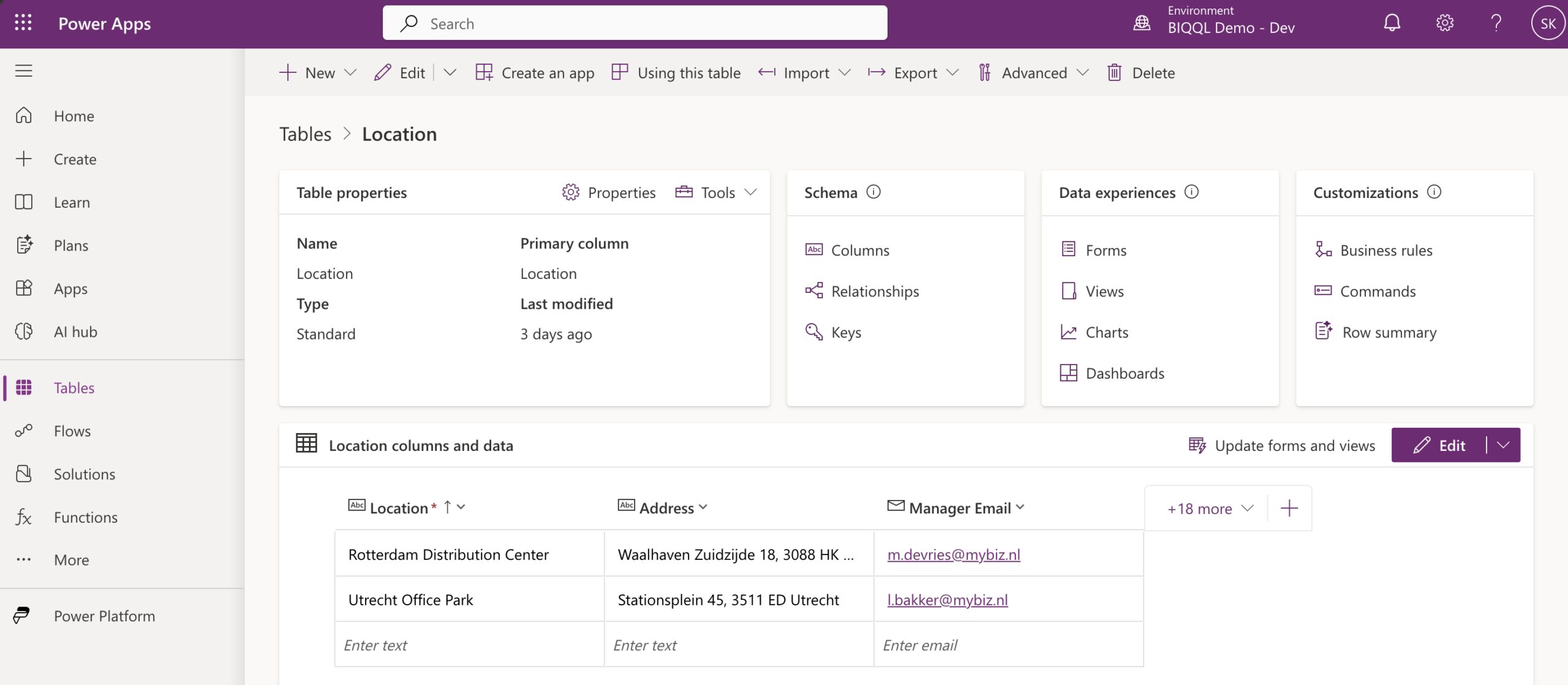
Physical sites. Includes Manager Email used by the flow to route notifications to the right person based on where the inspection happened.
Equipment Type
Reference table — HVAC Unit, Generator. The pivot of the dynamic checklist. Everything traces through here.
Equipment
Individual physical units. Each links to a Location (where it lives) and an Equipment Type (what it is). These two lookups power the filtering on screens 2 and 3.
Checklist Template
Named inspection sets — one per equipment type. Each links back to Equipment Type, completing the connection between type and steps.
Checklist Item
The actual inspection questions. Each has a Sequence Number for ordering and a lookup to Checklist Template so the app knows which template it belongs to.
Job Report
One record per inspection. Links to Technician and Equipment. Has a Summary field left blank at creation — populated later by AI Builder.
Technician
People submitting reports. Name, email, region. Two records in the demo: Jeroen Smit (West Netherlands) and Aisha Verhoeven (Central Netherlands).
Report Item
One record per checklist question per inspection. Stores Pass/Fail/N/A and any technician notes. The junction between a specific question and a specific inspection event.
Location table in Dataverse showing columns and sample records
Location table — columns and sample data

The full relationship chain

Location Equipment Equipment Type Checklist Template Checklist Item Report Item Job Report Technician

Left side defines what can be inspected. Right side captures what happened. Report Item connects the two halves — linking a specific checklist question to a specific inspection event with a specific result.

Section 2

The canvas app

Screen structure and data source connections were set up through Power Apps Studio. Formula editing was handled through Claude Code in VS Code — downloading the .msapp file, unpacking it to readable YAML, editing Power Fx formulas as plain text, repacking, and importing back. This approach was significantly more reliable than writing complex formulas in the Studio formula bar, particularly for filtering through Dataverse lookup relationships.

Key technical finding
  • Dataverse lookup fields in canvas apps must be compared using the underlying GUID, not by comparing whole records or display name strings
  • The correct pattern: Location.saeid_locationid = varSelectedLocation.saeid_locationid
  • This is delegation-safe and avoids type mismatch errors that occur with direct record comparison
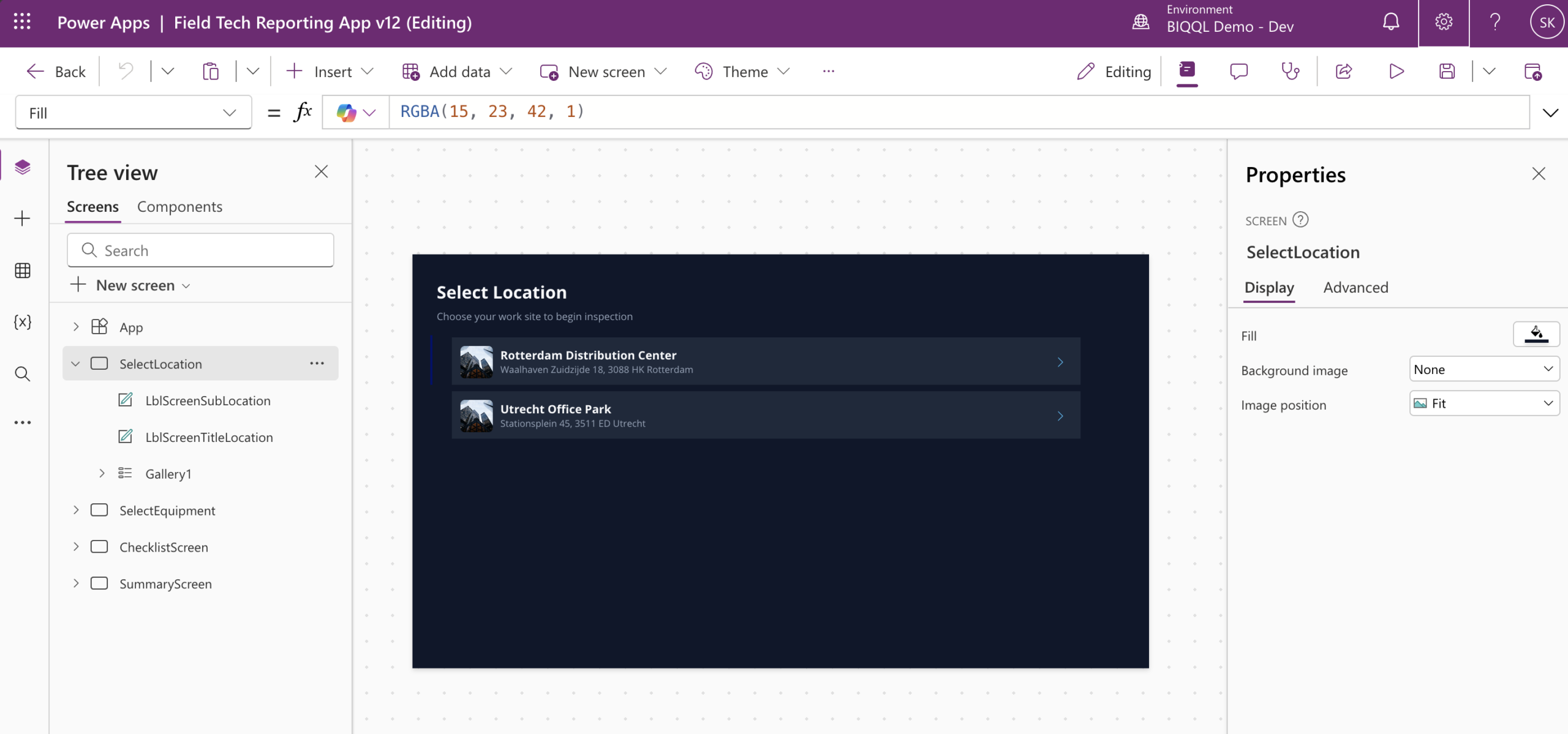
Screen 1 — Select Location
1 Select Location
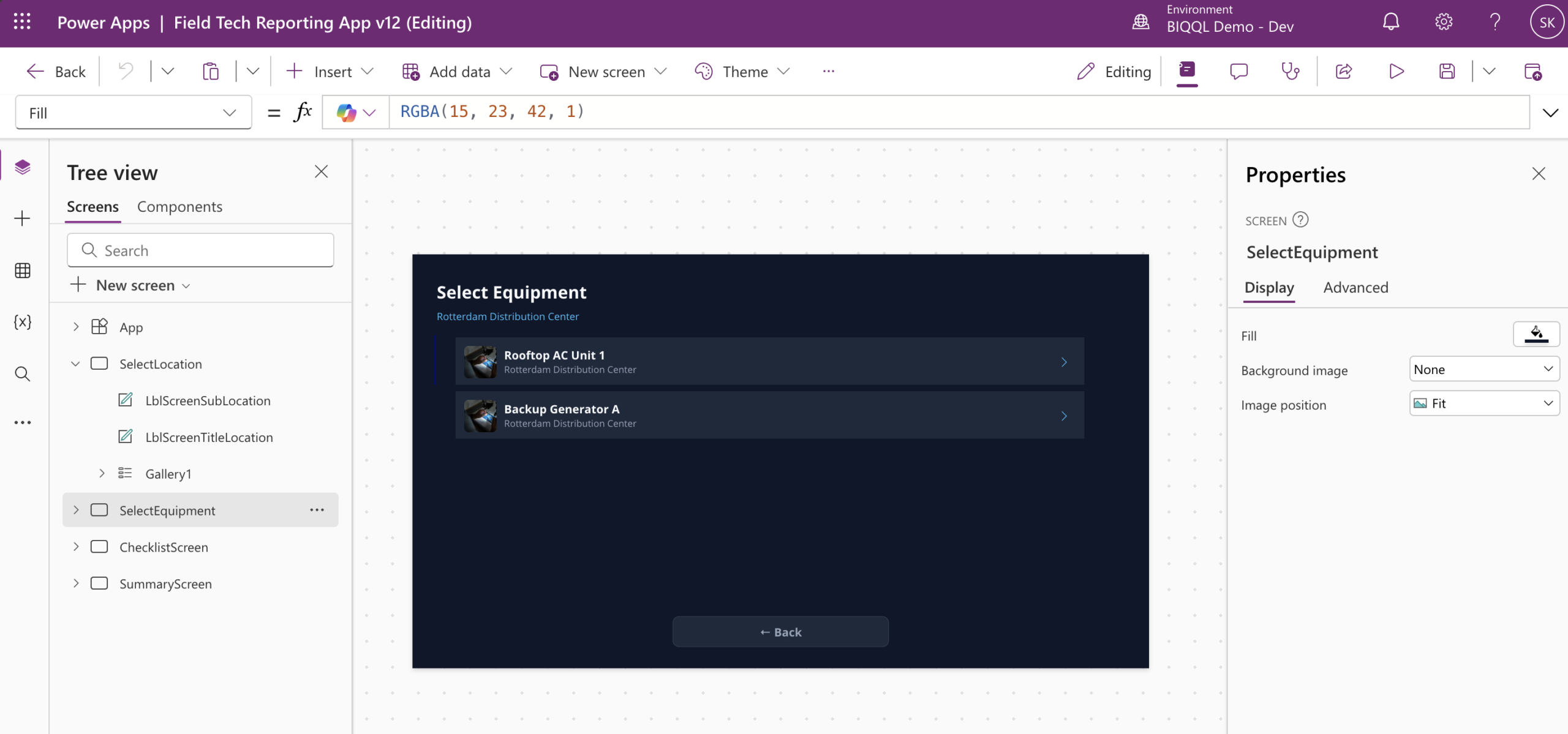
Screen 2 — Select Equipment
2 Select Equipment
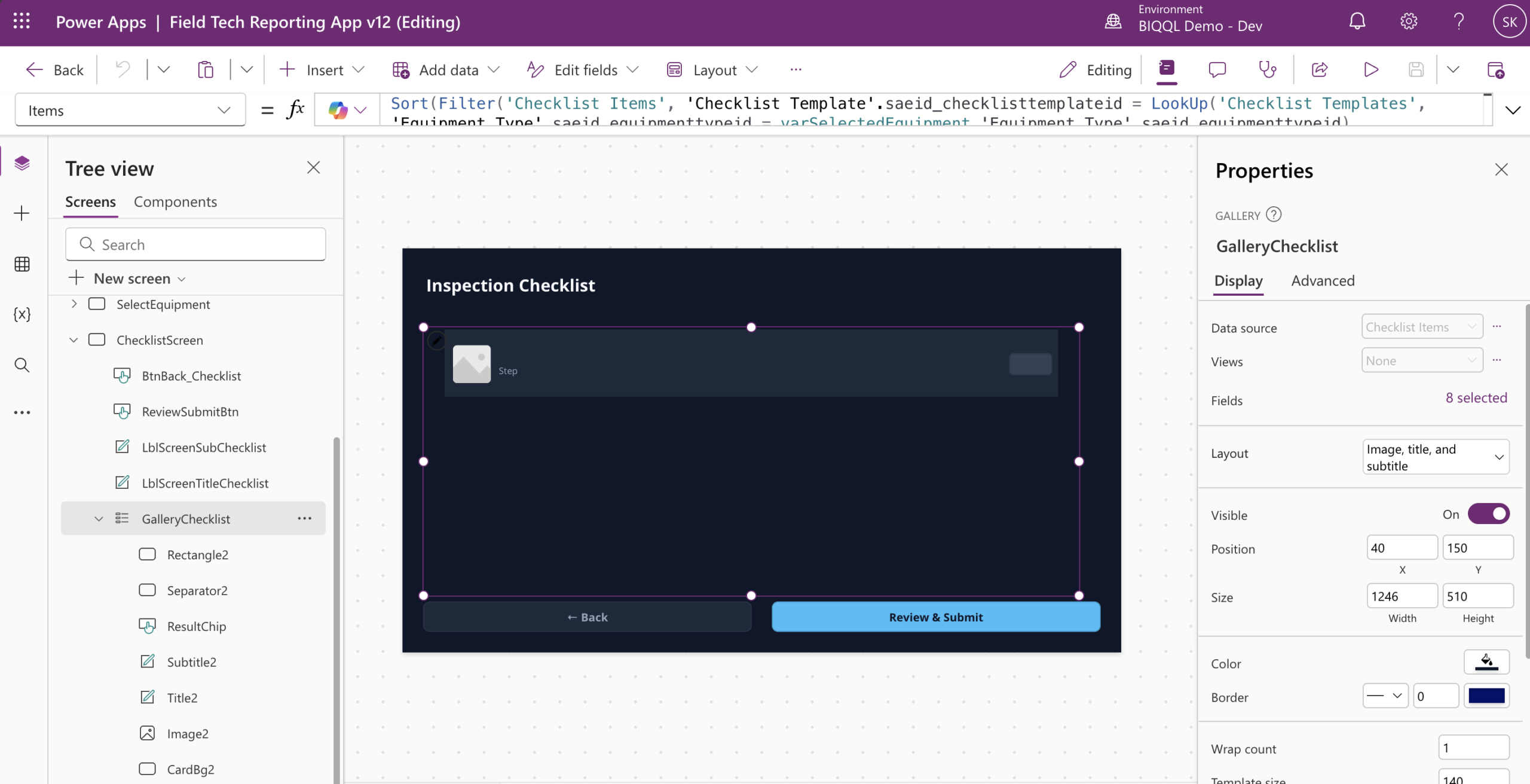
Screen 3 — Checklist
3 Checklist
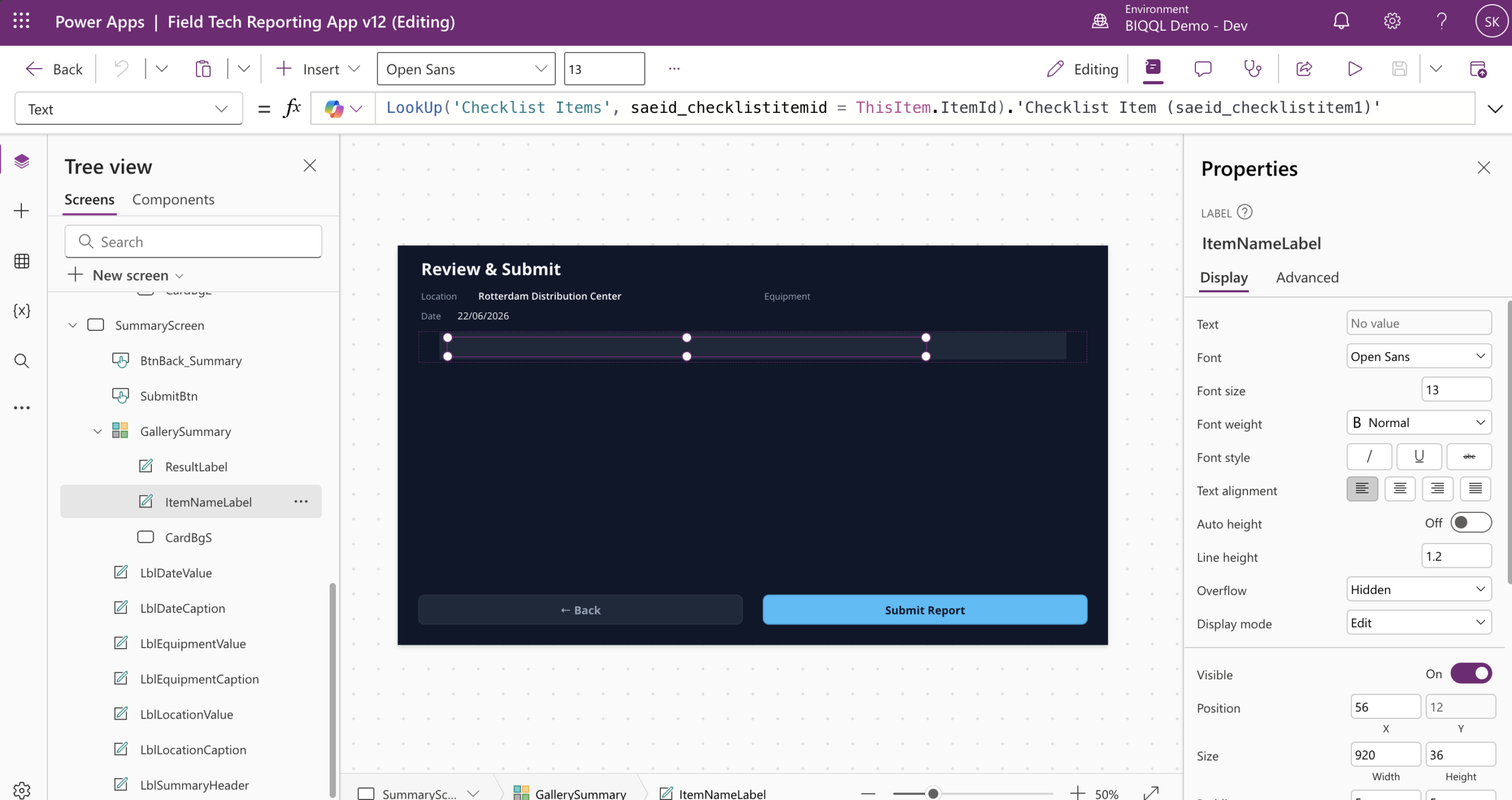
Screen 4 — Review and Submit
4 Review and Submit

Screen by screen

Screen 1 — Select Location. Gallery of all sites. Tapping a row stores the full record in varSelectedLocation and navigates forward. Storing the full record means Manager Email is available later without a second database query.

Screen 2 — Select Equipment. Gallery filtered to show only equipment at the chosen location:

Power Fx — Screen 2 filter
Filter(Equipments, Location.saeid_locationid = varSelectedLocation.saeid_locationid)

Screen 3 — Checklist. The most complex screen. The gallery follows the full lookup chain to load the right checklist automatically:

Power Fx — Screen 3 dynamic checklist
Sort( Filter(‘Checklist Items’, ‘Checklist Template’.saeid_checklisttemplateid = LookUp(‘Checklist Templates’, ‘Equipment Type’.saeid_equipmenttypeid = varSelectedEquipment.‘Equipment Type’.saeid_equipmenttypeid ).saeid_checklisttemplateid ), ‘Sequence Number’, SortOrder.Ascending )

Each checklist row has a button cycling through Pass, Fail, and N/A. Every tap updates an in-memory collection for immediate UI feedback and writes directly to Dataverse simultaneously — so partial inspections are never lost if the app closes mid-session.

Screen 4 — Review and Submit. Shows location, equipment, date, and all results color-coded. Submit patches the Job Report status to Submitted, triggers Power Automate, and resets the app for the next inspection.

Live demo
The app is live in a Microsoft developer environment. You can open and navigate it directly.
▶ Open the app
Section 3

Power Automate + AI Builder

Once a technician submits, the flow “Field Report AI Summary” fires automatically. It fetches the results, formats them, calls an AI Builder prompt, and writes the generated summary back to Dataverse — then emails it to the location manager. No custom code, no external API calls, everything runs inside the Microsoft stack.
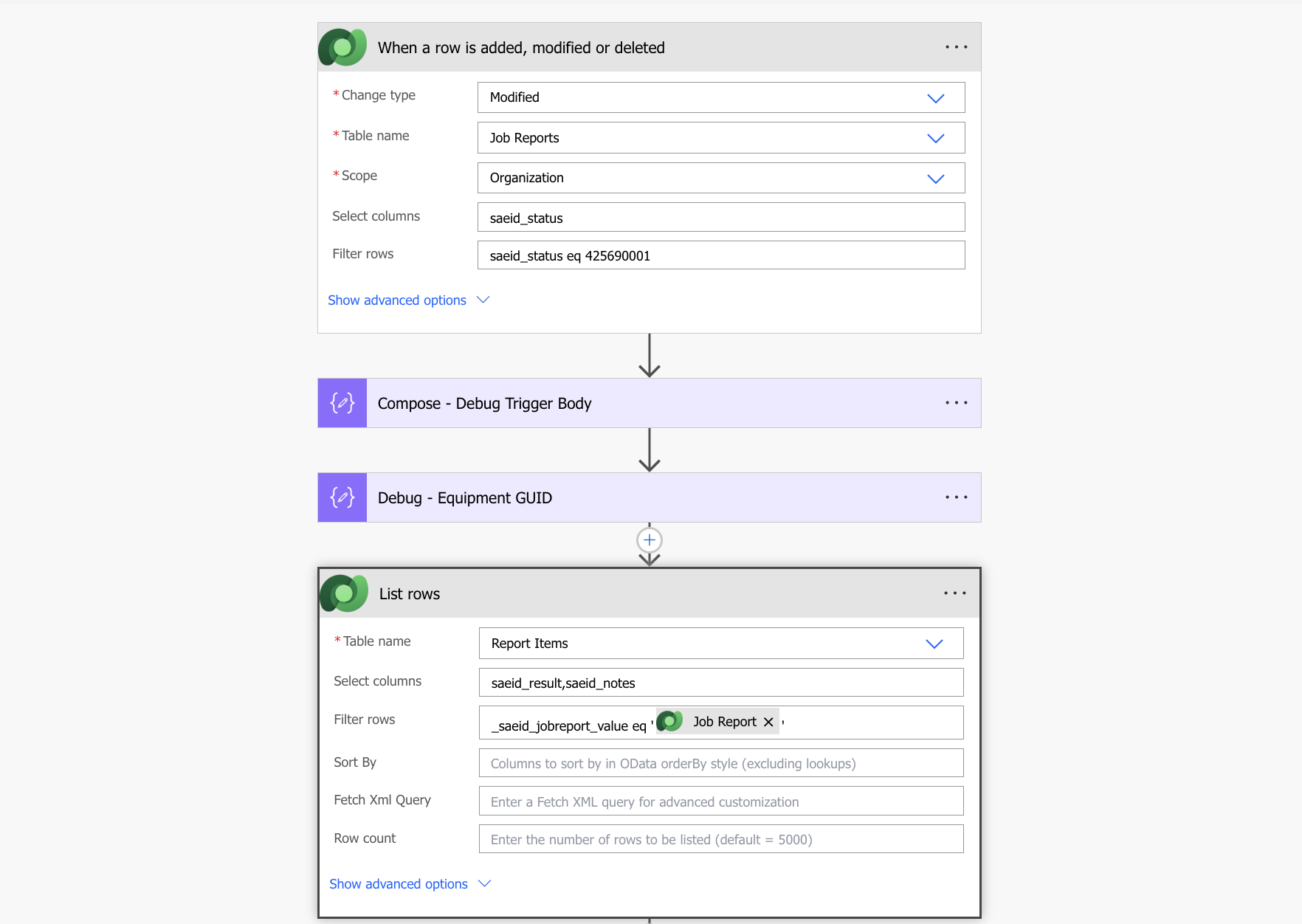
List Report Items step
Step 1 — List Report Items
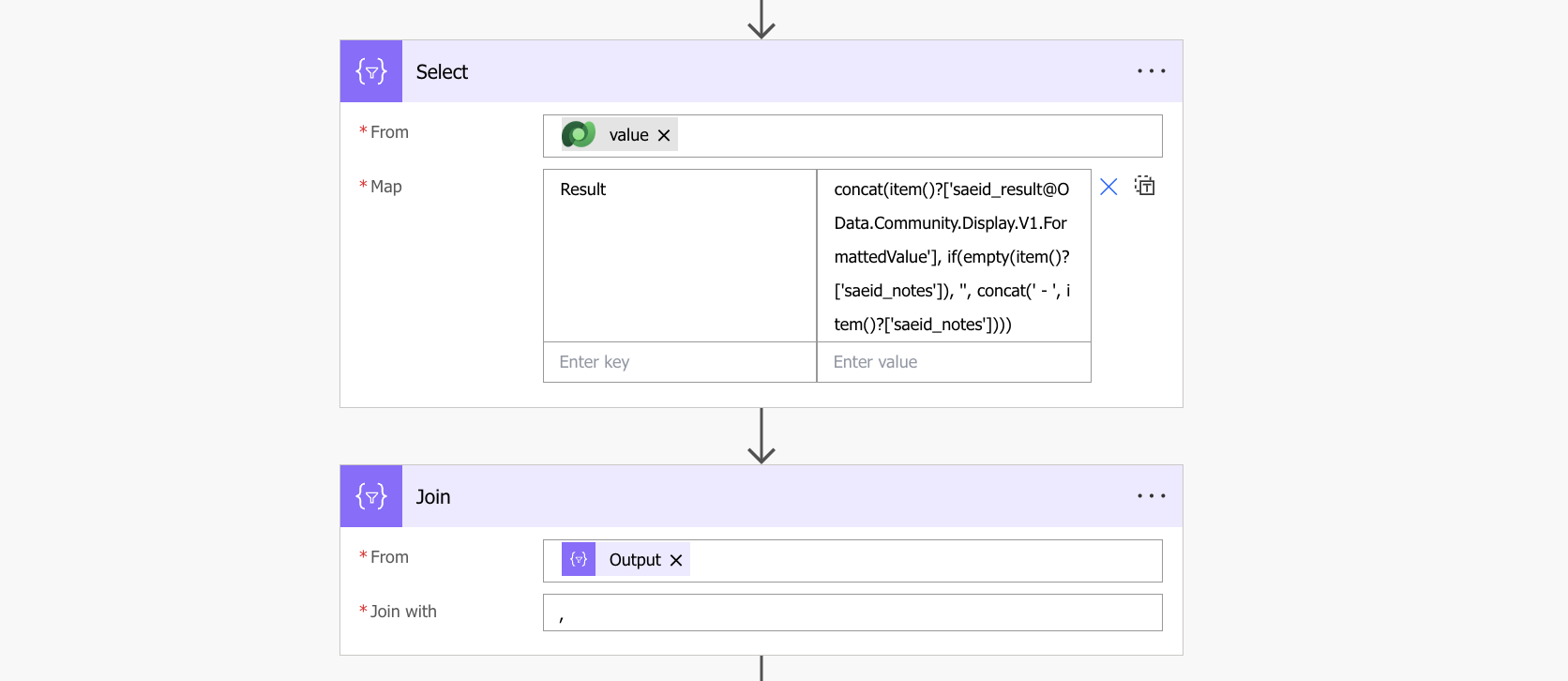
Select and Join steps
Steps 2 and 3 — Select and Join
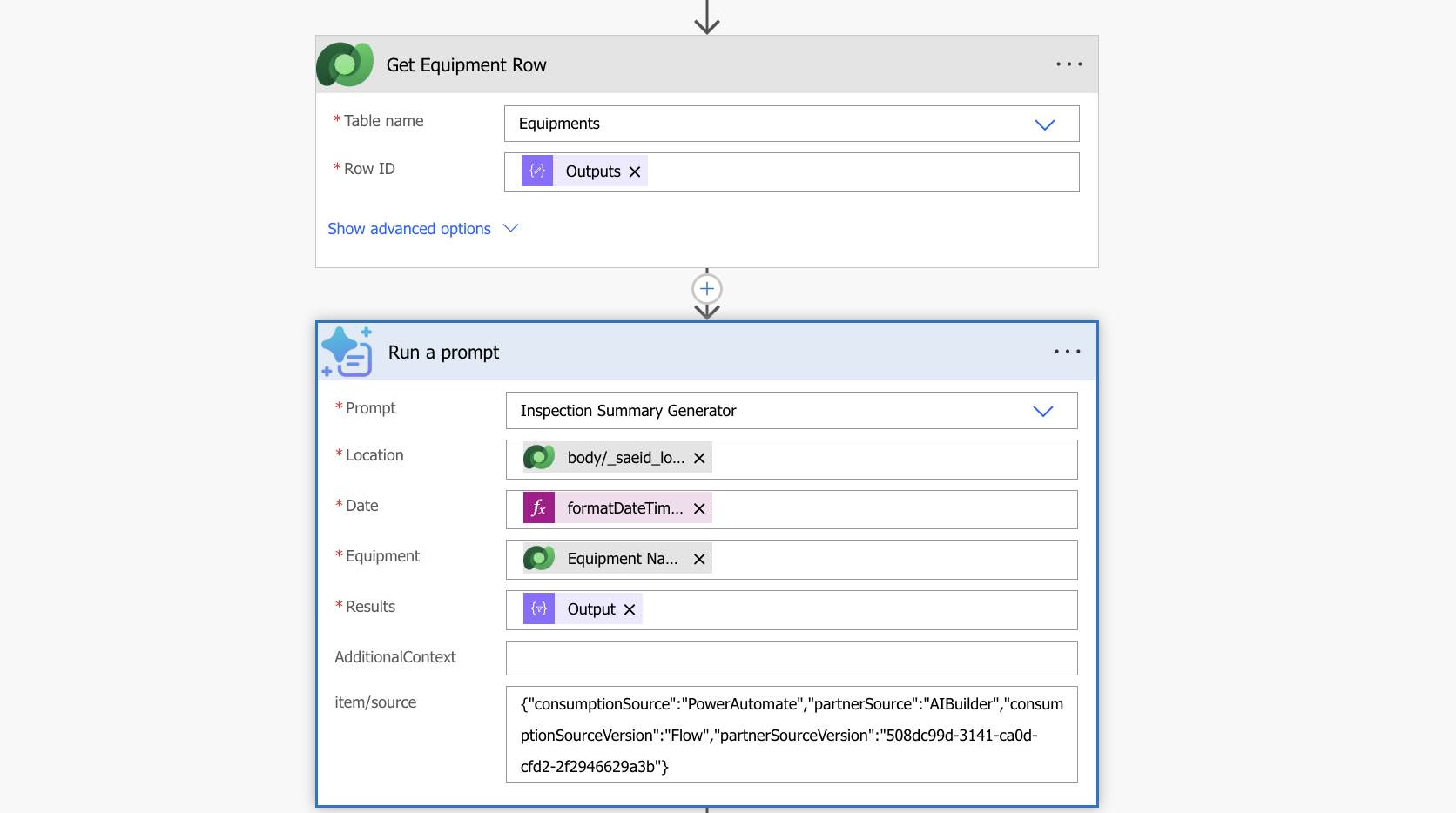
Get Equipment Row and Run a Prompt
Steps 4 and 5 — Get Equipment Row + Run a Prompt
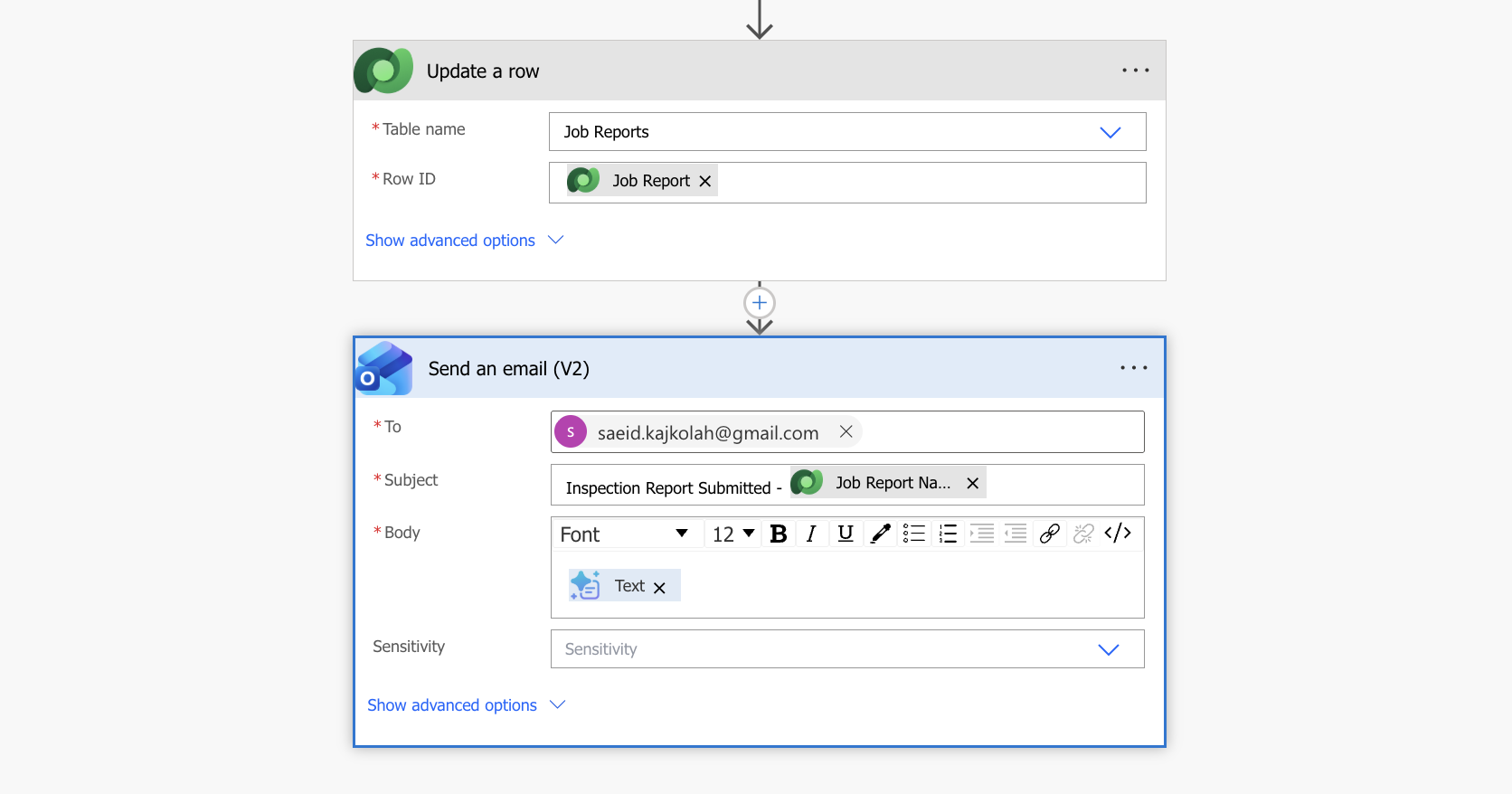
Update a row and Send email
Steps 6 and 7 — Update a Row + Send an Email

The 7 steps

1 — List Report Items
Fetches all checklist results linked to this Job Report — both the Pass/Fail/N/A value and any technician notes.
2 — Select
Transforms each result into a formatted line: “Fail — Calibration drift of 2 degrees.” A Data Operation mapping across the array without a loop.
3 — Join
Combines all formatted lines into one text string — the value passed to the AI prompt as the Results input.
4 — Get Equipment Row
Fetches the full Equipment record to retrieve the Location name. The trigger body only exposes raw GUIDs — human-readable names require a separate Get row action.
5 — Run a Prompt
Calls the AI Builder prompt with four inputs: equipment name, location name, submission date, and the joined results. Returns a generated plain-language summary.
6 — Update a Row
Writes the AI-generated summary back to the Job Report’s Summary field in Dataverse — permanently available to any query, report, or canvas app.
7 — Send an Email
Sends the summary to the location manager. In production this pulls Manager Email dynamically from the Location record, routing to the correct person based on which site the inspection was at. Fixed address in this demo.
Technical note — lookup field naming in Power Automate
  • The Dataverse trigger body does not include FormattedValue annotations for lookup columns — only the raw GUID under the _columnname_value path
  • To get a human-readable display name for a lookup field, you need a separate Get row action or the FormattedValue annotation path
  • This is why the Get Equipment Row step exists as a dedicated action rather than reading the location name directly from the trigger
End to end

From tap to manager inbox

A technician selects their site, picks the equipment they’re inspecting, works through the auto-generated checklist, taps Pass or Fail on each item, adds notes where needed, and submits. Within seconds the manager receives:

“Inspection of Rooftop AC Unit 1 at Rotterdam Distribution Center on 22/06/2026 found one item requiring attention. Thermostat calibration shows a drift of 2 degrees and requires recalibration before next service cycle. All other items passed.”
AI Builder generated — no manual report writing, no copy-pasting from a form into an email

Why it scales

New site
One Location record in Dataverse. The app shows it immediately.
New equipment
One Equipment record with the correct type lookup. Shows up on Screen 2 for the right site.
New equipment type + checklist
One EquipmentType, one ChecklistTemplate, and however many ChecklistItem records. App changes: zero.

This is the difference between a form and a system. A form captures data. A system applies logic to that data, routes it to the right people, and generates value from it automatically.

Scroll to Top